How to Set Up WhatsApp in HighLevel: A Step-by-Step Guide
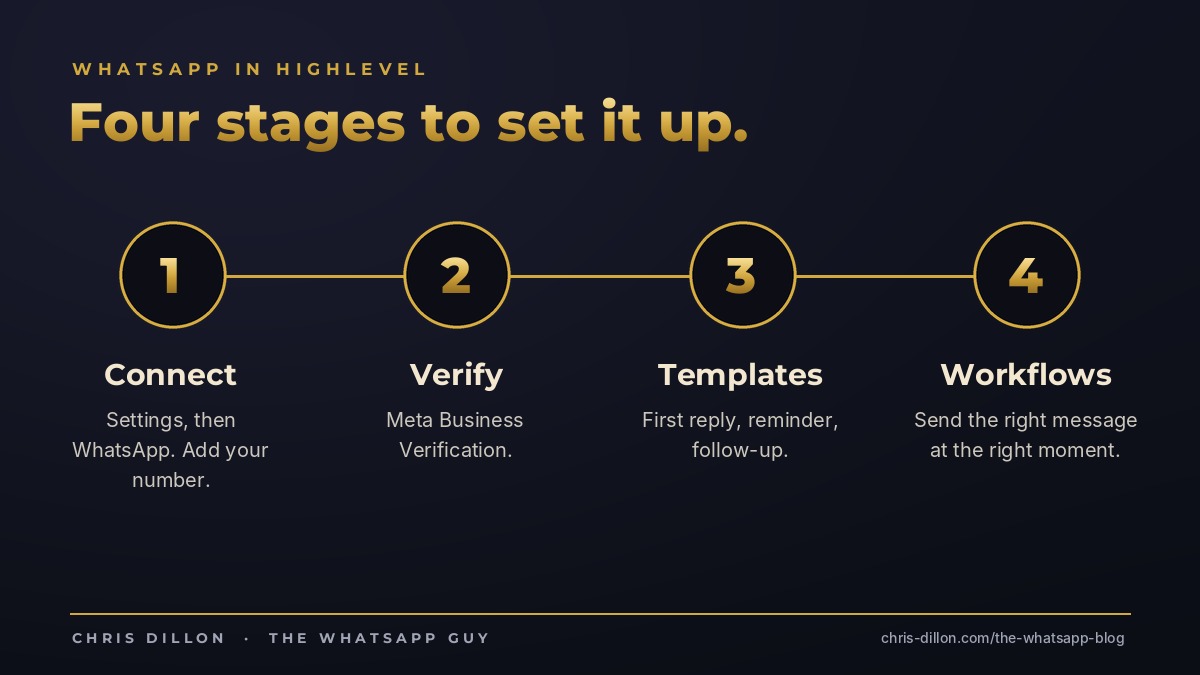
Setting up WhatsApp in HighLevel takes four stages: connect a number through Settings, get your Meta business verified, get your message templates approved, then build the workflows that use them. The connection itself is quick. The templates and workflows are where the results come from.
I built HighLevel's official WhatsApp Skills Badge course, and this is the order I recommend to everyone. HighLevel updates its screens regularly, so treat this as the map and HighLevel's WhatsApp help article as the latest detail.
Before you start
- Pick your number. It can be new or one you already have, but it can't be active on the regular WhatsApp app or the WhatsApp Business app at the same time.
- Have your Meta (Facebook) login ready. You'll need access to the Meta Business account the number will sit under.
- Be at a computer. This isn't a job for your phone.
Step 1: Connect your number
In your sub-account, go to Settings, then WhatsApp. WhatsApp in HighLevel runs as a subscription. From the Numbers tab you add your number, set the display name customers will see, and complete Meta's verification steps.
Choose the display name carefully. It's what appears at the top of every chat, so use the name your customers know you by.
Step 2: Get verified
Your Meta Business Verification status shows on the WhatsApp card in HighLevel. Verification tells Meta you're a real business, and it affects how many people you can message. Do it early. It's the step people forget, then wonder why they're limited.
Step 3: Get your templates approved
To message someone first, you need a template Meta has approved. Templates have a category, such as Marketing or Utility, and can include a header, body, footer and buttons.
- Start with three: a first reply to new enquiries, an appointment reminder, and a follow-up for people who've gone quiet.
- Write like a person. Short, first name, one question.
- Add buttons so people can reply in a tap.
Approval usually takes from a few minutes to 24 hours. HighLevel also has a Template Rewriter that can help turn a marketing template into a utility one where that's appropriate.
Step 4: Build the workflows
This is where WhatsApp starts earning its keep. Use your templates in workflows so the right message goes out at the right moment:
- New enquiry: send the first-reply template within a minute and notify your team.
- Booking: use a WhatsApp Flow, which can link to one of your HighLevel calendars, so people book without leaving the chat.
- Reminders: the day before and the hour before.
- Follow-up: one or two friendly nudges if there's no reply, then stop.
The mistakes I see most
- Connecting a number that's still active on someone's phone
- Skipping business verification
- Writing templates like SMS blasts, then getting them rejected or ignored
- Building broadcasts before building the first-reply workflow
Quick answers
Can I use my existing WhatsApp number in HighLevel?
Yes, as long as it isn't active on the WhatsApp app or WhatsApp Business app at the same time.
How long does template approval take?
Usually from a few minutes to 24 hours. Clear, specific templates that match their category get approved fastest.
Chris Dillon, known as The WhatsApp Guy, helps businesses turn WhatsApp into a sales channel that runs on autopilot. He created HighLevel's official WhatsApp Skills Badge course, has spoken about WhatsApp for business on stages in Dallas, India and Manila, and is the Amazon bestselling author of No One Gives A Shit About Your Business. He is the founder of The Marketing Autopilots.
Want it set up for you? Book a discovery call or message me on WhatsApp.